When the Email Body Suddenly Disappears in Dynamics 365: My Rich Text Editor Lesson Learned
Recently, I ran into a production issue in Dynamics 365 Customer Service that looked simple at first, but turned into a very useful reminder about custom forms, Microsoft first-party controls, and the Rich Text Editor.
The issue was this:
Users opened an email activity in Customer Service Workspace and in a custom model-driven app, but the email body was blank.
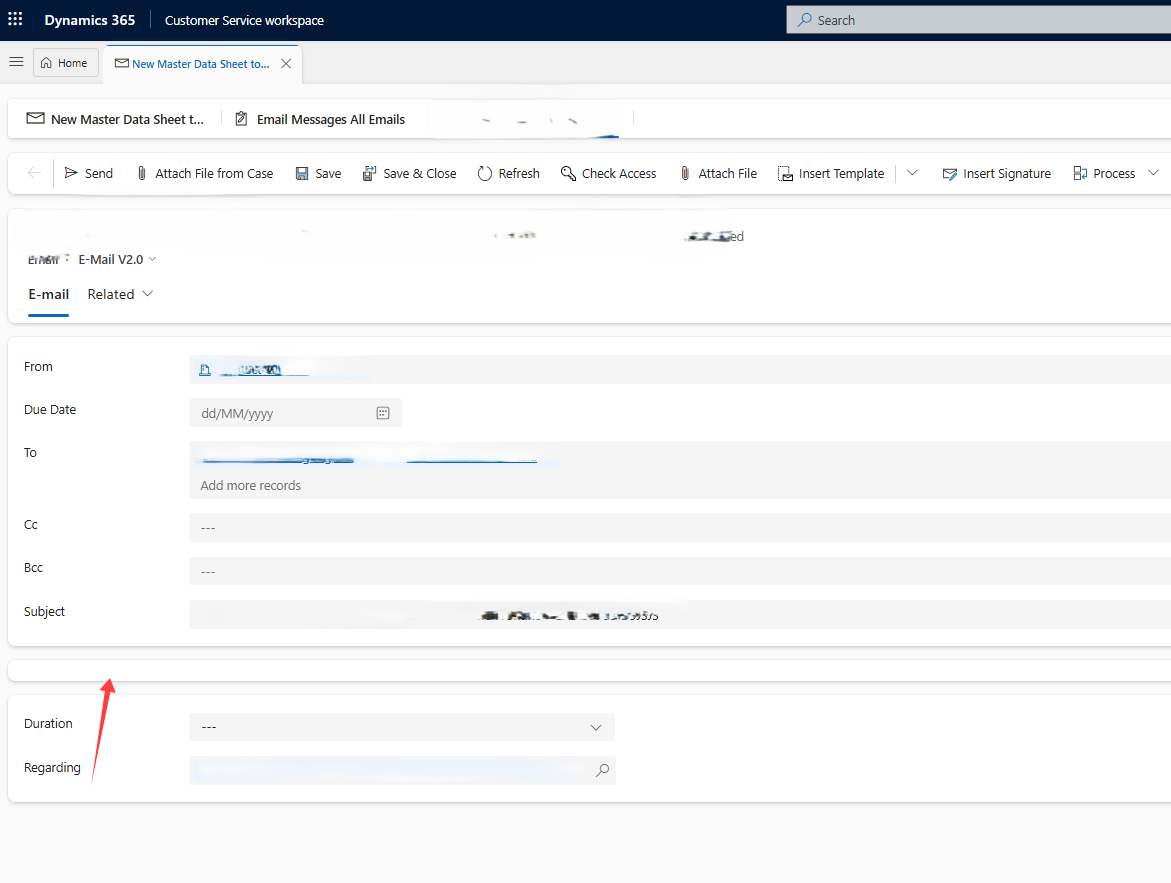
The email activity record itself opened correctly. The subject was there. The sender and recipients were there. The regarding case was there. Attachments were visible. Only the actual email text was missing.
At first glance, this looked like a temporary isolated email data issue. But it was not.
The first important clue
The same email opened correctly on the Microsoft standard Enhanced Email form.
That was the key finding.
If the email body is visible on the Microsoft form, then the email body should render correctly. The description field still contains the email content. The issue must be somewhere in the custom form or in the way the email body control is rendered.
In our custom form, the browser console (Developer Tools) showed this error:
Error occurred during initialization of control:
MscrmControls.RichTextEditorV2.RichTextEditorControlV2

Message:
Cannot read properties of undefined (reading 'attributes')
That pointed directly to the Rich Text Editor V2 control.
What was discovered…
Our custom Email form was based on a 4 year older Microsoft Email form. This is a very common pattern in Dynamics 365 projects: you take a Microsoft standard form, copy/customize it, add customer-specific fields and logic, and include it in the relevant app.
In this case, however, the custom form no longer behaved like the Microsoft standard Enhanced Email form.
The important difference was around the Description / Email Body field. The working Microsoft form had the correct Rich Text Editor configuration. Our custom form did not.
After adding/configuring the Rich Text Editor control properly on the custom Email form, the email body rendered again.
Why this matters now
Microsoft has deprecated the classic rich text editor experience. Microsoft documentation states that, as of April 2025, the classic rich text editor experience is deprecated in Dynamics 365 apps and that the modern rich text editor is now the default experience.
Microsoft also mentions that customizations from the previous rich text editor may need to be recreated in the modern rich text editor.
Deprecations in Dynamics 365 Customer Service | Microsoft Learn
Add the rich text editor control to a model-driven app – Power Apps | Microsoft Learn
That makes sense technically, but in real implementation projects this can easily be missed. Custom forms based on Microsoft forms are normal and often necessary. But if Microsoft changes the underlying first-party control behavior, older copied form configurations may not automatically receive the same updates as Microsoft’s own standard forms.
The fix
In our case, the fix was to update the affected custom Email forms and ensure that the Description / Email Body field uses the correct Rich Text Editor control configuration.
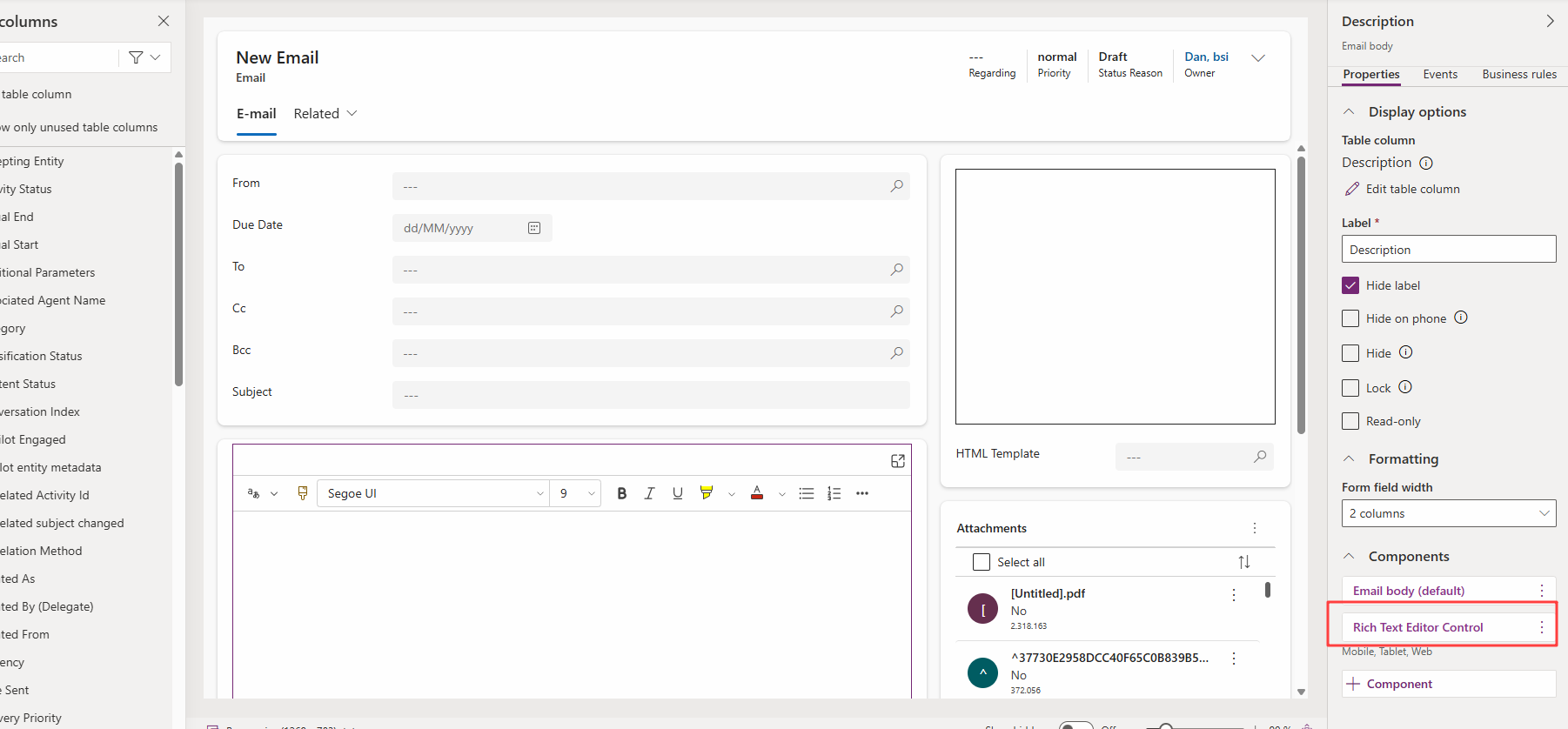
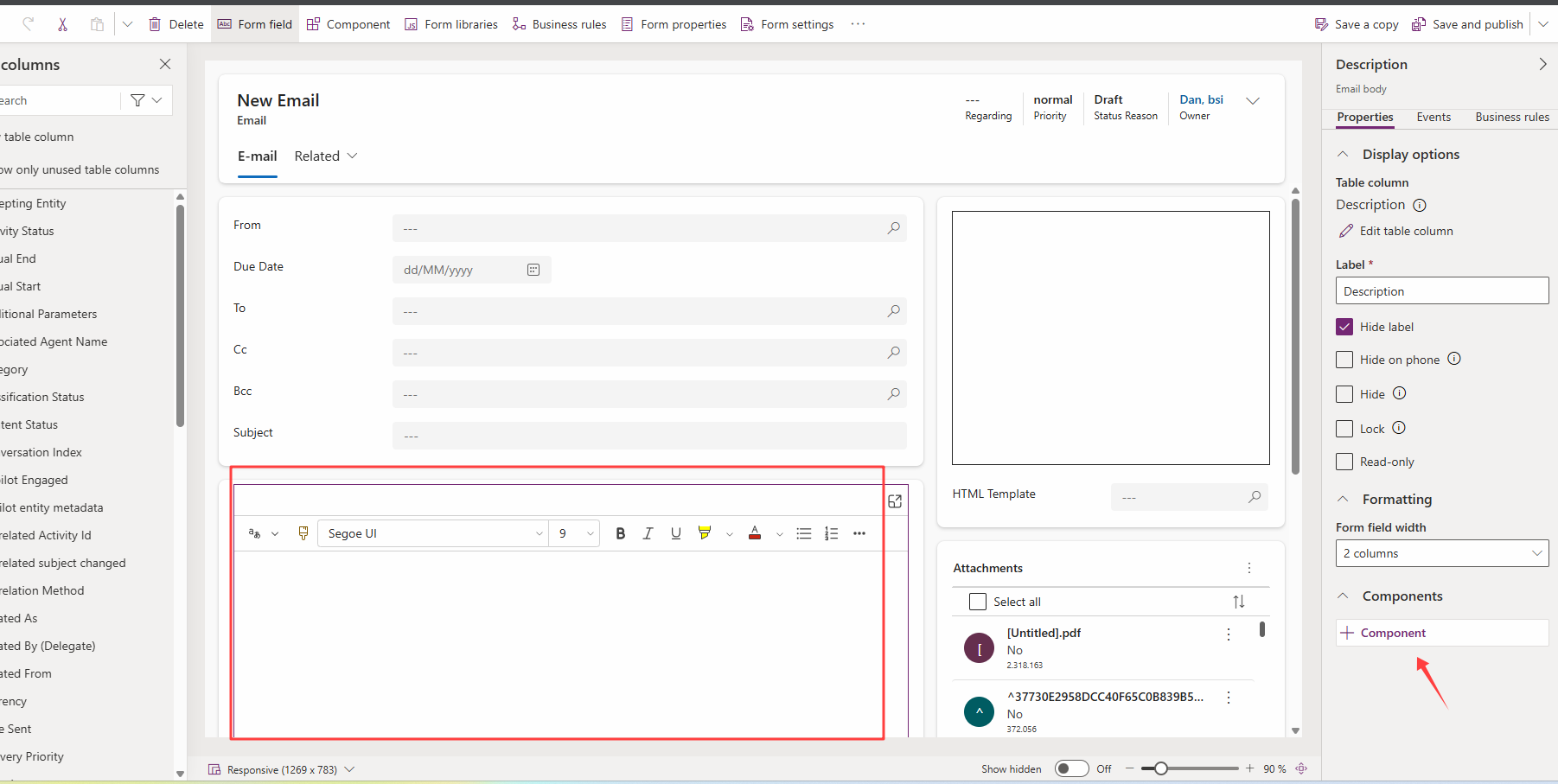
Additionally, do not forget to
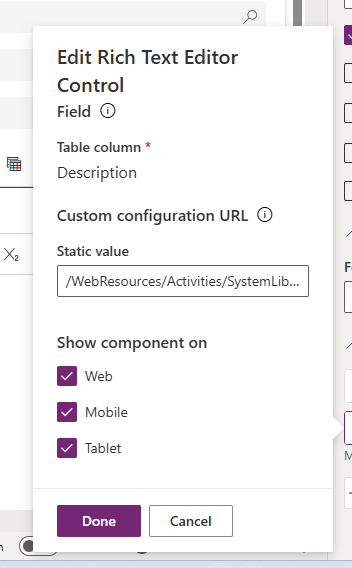
- Add the Static Value (similar to the Enhanced Email form): /WebResources/Activities/SystemLibraries/msdyn_EmailRTEconfig.js
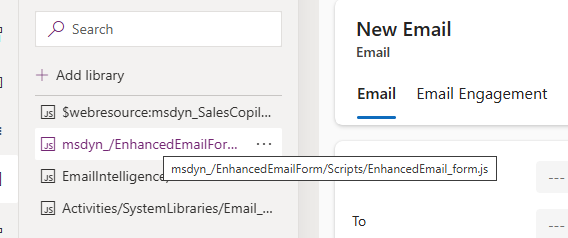
- Add the JS Library “..EnhancedEmail_form.js” to your custom form